
Help & Knowledge Base
Customizing Result File Names
Special keywords can be used as placeholders in the output file names, to be replaced with dynamic values during the execution.
A trivial example is prefixing each document with the page number, when splitting.
[CURRENTPAGE]
A reference to the current page number in the input document.
Example: [CURRENTPAGE###] will generate filesnames like 001.pdf, 002.pdf.
Example: [CURRENTPAGE##] generates 01.pdf, 02.pdf, etc.
[TIMESTAMP]
Ensures unique output filenames, being replaced with current date & time.
[FILENUMBER]
Ensures unique output filenames, replaced with a file number according to the output order.
Example: [FILENUMBER###] generates 001, 002
Example: [FILENUMBER13] starts with the counter at 13, generating 13, 14,
etc.
[BASENAME]
Does not ensure unique output filenames, and it must be used together with other placeholders ensuring unique names. It is replaced with original name of the input document, without the extension.
Example: [CURRENTPAGE]_[BASENAME] would generate 1_input-file.pdf, 3_input-file.pdf,
etc.
[BOOKMARK_NAME]
This pattern is replaced by current bookmark's name. Only applicable in the "Split by bookmarks" tool.
[BOOKMARK_NAME_STRICT]
Same behavior as [BOOKMARK_NAME] with the difference that non-alphanumberic characters are
removed.
Example: [CURRENTPAGE]-[BOOKMARK_NAME] would generate 1-Introduction.pdf, 4-Chapter
1.pdf, etc.
[TEXT]
This pattern is applicable only in the "Split by text" tool. It is replaced with the text found in the page area selected.
Example: [CURRENTPAGE]-[TEXT] would generate 1-Invoice 3456789.pdf, 4-Invoice
234567.pdf, etc.
[TEXT1], [TEXT2], etc.
This pattern is applicable only in the "Rename" tool. It is replaced with the text found in the selected area.
Example: [TEXT2]-[TEXT1] would generate John Doe-Invoice 3456789.pdf, Jane Doe-Invoice
234567.pdf, etc.
Sejda Desktop Enterprise Install
To deploy Sejda Desktop in an enterprise environment using a pre-configured volume license key use this command:
msiexec /i sejda-desktop_x.y.z_x64.msi LICENSE_KEY="1234-ABCD-1234-ABCD"
Any options provided will be configured machine-wide and will apply for all users on the system.
| LICENSE_KEY | License key | LICENSE_KEY="1234-ABCD-1234-ABCD" |
| LOCALE | UI language | en, es, de, fr,it or pt |
| UPDATE_CHECK | Disables checking for new versions | UPDATE_CHECK="false" |
| DISABLED_FEATURES | List of features to be disabled | DISABLED_FEATURES="edit.whiteout" |
| EULA_ACCEPTED | Accept EULA and no longer prompt on first use | EULA_ACCEPTED="true" |
| AUTO_REPORT_ERRORS | Configure automated error reporting and no longer prompt on first use | AUTO_REPORT_ERRORS="false" |
Resetting Browser Zoom
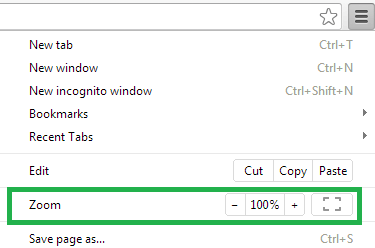
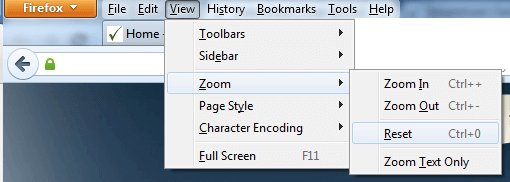
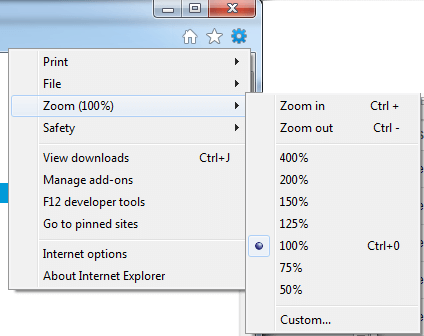
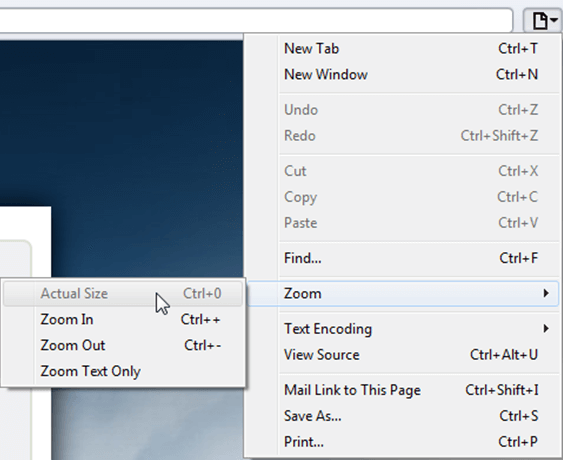
Choosing a zoom level of anything other than 100% (the default) can cause problems in pages where we render PDF pages.
If you are warned about it, reset the browser zoom to 100%.
The quickest way to return your browser to this zoom setting is to use the keyboard shortcut Ctrl + 0 on Windows or Cmd + 0 on Mac.
Additional browser-specific instructions for changing the zoom level are detailed below.
Chrome
Firefox
Internet Explorer
Safari
Sejda Desktop - Loading local fonts failed
Sejda Desktop fails to load the fonts installed on your system?
Windows 7: Please install "Platform update for Windows 7 SP1": https://support.microsoft.com/en-us/kb/2670838.
Linux: Please install libfontconfig-dev: sudo apt-get install libfontconfig-dev
Sejda Desktop - Add your fonts
Sejda Desktop can use your custom fonts when editing PDF documents.
1) Install the font on your system. See help for Windows or Mac.
2) Open Sejda Desktop, then open a PDF document with the Editor.
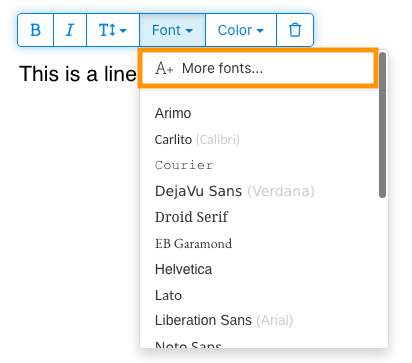
3) Type text on the page. From the context menu select "Fonts > More fonts".
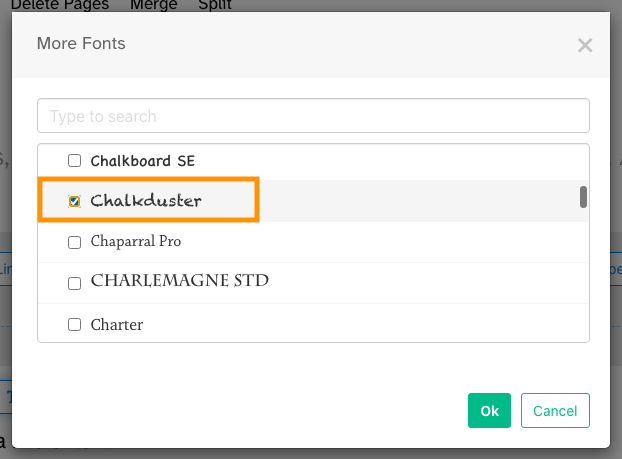
4) Select the font you would like to use and click "OK".
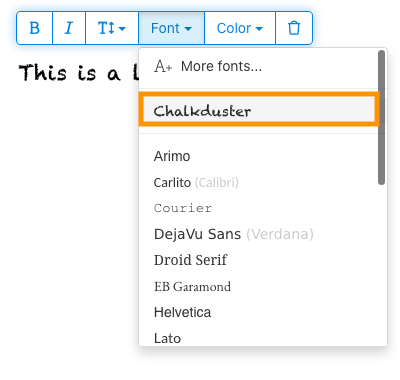
5) Click on the newly added font to use it for your text.
How long does it take for a refund to be processed?
It can take anywhere from 5-10 business days for a refund to show up on your bank account.
In some cases, the refund might be processed as a reversal, meaning the original payment will disappear from the account statement entirely and the balance will reflect as though the charge never occurred.
If you do not see the refund after 10 business days and you are still seeing the original charge on your bank statement, please reach out to support for more information.
How can you delete your FastSpring data?
If you've placed an order through FastSpring, our online authorized reseller & merchant of record, you can send your data erasure request to privacy@fastspring.com.
Malwarebytes interfering with Sejda Desktop?
Do you have Malwarebytes installed?
Please try temporarily turning Malwarebytes off and see if that solves the problem: Instructions here
You can report this problem with Malwarebytes: Report false positive
Could not convert: Page uses CAPTCHAs
The website you are trying to convert uses CAPTCHAs to block automated robots (such as our converter) from visiting their website.
There is no work around this.
See if the browser extension helps with your use-case:
HTML to PDF browser-extension
Install Linux OCR engine
Sejda Desktop does not ship with an embedded OCR engine on Linux, it uses the one available on the system.
To install an OCR engine, please run the following command:
sudo apt-get install -y tesseract-ocr tesseract-ocr-all
Once the command completes, return to Sejda Desktop and run your OCR task again.
Install Linux OCR language data
The OCR engine is installed successfully, but it is missing language data.
To install language data, please run the following command:
sudo apt-get install -y tesseract-ocr-all
About 667M of data will be downloaded and installed.
Once the command completes, return to Sejda Desktop and run your OCR task again.
我被要求输入所有者密码
为什么我被要求输入密码?
某些 PDF 文档带有安全性设置,限制了打印、复制文本、编辑或添加注释等特定操作. 这些限制由文档创建者设置,用于控制内容的查看和共享方式.
当我们检测到 PDF 有这些限制时,会提示你输入所有者密码. 输入此密码可解锁文档,并授予对所有功能和权限的完整访问权. 此步骤可确保只有经过授权的人员才能修改或删除原作者设置的限制.
什么是所有者密码?
所有者密码由 PDF 创建者设置,旨在防止对文档进行未经授权的更改. 它与用户密码不同,后者限制打开文档. 如果你有所有者密码,意味着你拥有对文档的完整权限.
如果我没有所有者密码怎么办?
如果你没有所有者密码,你将继续根据 PDF 中设置的限制拥有有限的访问权.
要获得完整访问权限,请获取文档的未锁定版本.
如何避免每次都重复输入所有者密码?
你可以使用 PDF 解锁工具来移除文档的权限限制. 这一步只需做一次. 之后你就不会再被提示输入该文档的所有者密码了.
在 Google Chrome 中打开 PDF 文档,按 Ctrl+P 打印,在右上角将“目标打印机”选为“另存为 PDF”,然后点击“保存”.
购买付费套餐能解决问题吗?
不行,即使你购买了我们的付费套餐,系统仍然会要求你输入所有者密码.
你能告诉我所有者密码吗?
不知道,我们并不清楚你文档的所有者密码. 所有者密码是由文档创建者设置的,与你的登录密码不同.
我无法编辑或转换扫描文档
为什么扫描文档无法编辑或转换?
当你通过扫描纸质文档来创建 PDF 时,扫描仪会捕捉每一页的图像. 这个过程会将文本、图形和布局转换成嵌入在 PDF 中的单个图像文件. 与标准 PDF(文本以可选择、复制和编辑的单个字符和行存储)不同,扫描 PDF 将每一页都视为一张大图片.
由于扫描 PDF 中的文本是图像的一部分,PDF 编辑器无法直接识别或修改它. 软件看到的只是一堆像素点,而不是可辨认的字母或单词. 这导致你无法像在常规文本 PDF 文档中那样编辑文本段落或进行更改.
如何判断文档是否为扫描件?
判断 PDF 是否为扫描图像的一种方法是使用 PDF 阅读器打开它,并尝试用鼠标选择文本. 在可编辑的 PDF 中,你可以通过点击并拖动光标来高亮显示文本. 如果你无法选择任何文本,且整个页面像一张图片,那么它很可能是一个扫描文档.
注意:一些扫描文档经过 OCR 处理后会变成“可搜索”的扫描件,文本可以被选择和搜索. 然而,这些文档仍然属于扫描件,无法像标准 PDF 那样进行编辑或转换.
我确定我的文档不是扫描件
有些文档看起来像扫描件,是因为它们的内容是以图像形式嵌入在每一页上的. 这可能发生在由屏幕截图创建的文档中,或者当文本被转换为轮廓而不是嵌入为可编辑文本时.
虽然技术上这些不属于扫描件,但它们的作用方式类似. 很遗憾,我们也不支持编辑或转换这类文档.
购买付费套餐能解决问题吗?
不行,升级到付费套餐也无法让你编辑或转换扫描文档. 无论你的订阅级别如何,都不支持编辑或转换扫描件.
我确定我之前能编辑这个文档
我们从未支持过编辑或转换扫描文档. 如果你之前能编辑该文档,很可能是之前的 PDF 导出方式与现在的不同.
Sejda Desktop 因权限问题失败
此错误通常有两个原因:权限不足或杀毒软件干扰.
权限不足: 你可能需要以管理员权限运行 Sejda Desktop. 右击应用,然后选择“更多” > “以管理员身份运行”.
杀毒或安全软件: 尝试暂时禁用杀毒软件,看看是否有助于解决问题.
在 Chromebook 上安装 Sejda Desktop
可以使用 Linux 开发环境(也称为 Crostini)在 Chromebook 上安装 Sejda Desktop.
要求
你的 Chromebook 必须启用 Linux 开发环境. 要启用它,请前往 Settings → Advanced → Developers → Linux development environment 并按照设置步骤操作.
并非所有 Chromebook 都支持 Linux. 旧型号或低端型号可能没有此选项.
1. 下载 Linux (.deb) 版本
2. 在 Terminal 中安装
打开 Linux Terminal 应用并运行:
cd ~/Downloads
sudo dpkg -i sejda-desktop_*.deb
sudo apt -f install
3. 运行它
sejda-desktop
或者从 ChromeOS 启动器中的 Linux 应用文件夹启动它.
故障排除:应用无法打开
如果 Sejda Desktop 没有出现或无法打开窗口,请安装缺失的 GUI 库:
sudo apt install -y libgconf-2-4 libatk1.0-0 libatk-bridge2.0-0
OCR 功能
Linux 上的 Sejda Desktop 使用系统 OCR 引擎.
请参阅 Install Linux OCR engine 获取说明