
Help & Knowledge Base
Customizing Result File Names
Special keywords can be used as placeholders in the output file names, to be replaced with dynamic values during the execution.
A trivial example is prefixing each document with the page number, when splitting.
[CURRENTPAGE]
A reference to the current page number in the input document.
Example: [CURRENTPAGE###] will generate filesnames like 001.pdf, 002.pdf.
Example: [CURRENTPAGE##] generates 01.pdf, 02.pdf, etc.
[TIMESTAMP]
Ensures unique output filenames, being replaced with current date & time.
[FILENUMBER]
Ensures unique output filenames, replaced with a file number according to the output order.
Example: [FILENUMBER###] generates 001, 002
Example: [FILENUMBER13] starts with the counter at 13, generating 13, 14,
etc.
[BASENAME]
Does not ensure unique output filenames, and it must be used together with other placeholders ensuring unique names. It is replaced with original name of the input document, without the extension.
Example: [CURRENTPAGE]_[BASENAME] would generate 1_input-file.pdf, 3_input-file.pdf,
etc.
[BOOKMARK_NAME]
This pattern is replaced by current bookmark's name. Only applicable in the "Split by bookmarks" tool.
[BOOKMARK_NAME_STRICT]
Same behavior as [BOOKMARK_NAME] with the difference that non-alphanumberic characters are
removed.
Example: [CURRENTPAGE]-[BOOKMARK_NAME] would generate 1-Introduction.pdf, 4-Chapter
1.pdf, etc.
[TEXT]
This pattern is applicable only in the "Split by text" tool. It is replaced with the text found in the page area selected.
Example: [CURRENTPAGE]-[TEXT] would generate 1-Invoice 3456789.pdf, 4-Invoice
234567.pdf, etc.
[TEXT1], [TEXT2], etc.
This pattern is applicable only in the "Rename" tool. It is replaced with the text found in the selected area.
Example: [TEXT2]-[TEXT1] would generate John Doe-Invoice 3456789.pdf, Jane Doe-Invoice
234567.pdf, etc.
Sejda Desktop Enterprise Install
To deploy Sejda Desktop in an enterprise environment using a pre-configured volume license key use this command:
msiexec /i sejda-desktop_x.y.z_x64.msi LICENSE_KEY="1234-ABCD-1234-ABCD"
Any options provided will be configured machine-wide and will apply for all users on the system.
| LICENSE_KEY | License key | LICENSE_KEY="1234-ABCD-1234-ABCD" |
| LOCALE | UI language | en, es, de, fr,it or pt |
| UPDATE_CHECK | Disables checking for new versions | UPDATE_CHECK="false" |
| DISABLED_FEATURES | List of features to be disabled | DISABLED_FEATURES="edit.whiteout" |
| EULA_ACCEPTED | Accept EULA and no longer prompt on first use | EULA_ACCEPTED="true" |
| AUTO_REPORT_ERRORS | Configure automated error reporting and no longer prompt on first use | AUTO_REPORT_ERRORS="false" |
Resetting Browser Zoom
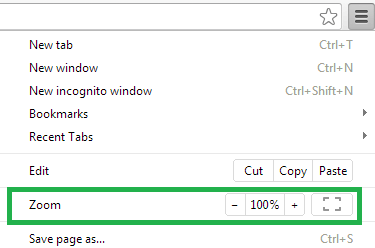
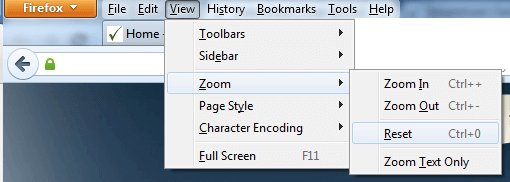
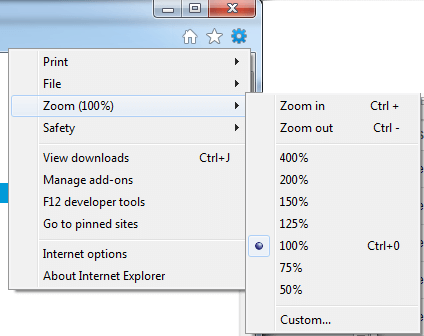
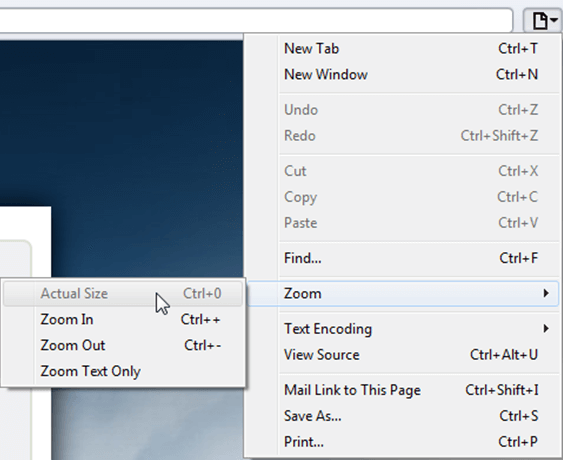
Choosing a zoom level of anything other than 100% (the default) can cause problems in pages where we render PDF pages.
If you are warned about it, reset the browser zoom to 100%.
The quickest way to return your browser to this zoom setting is to use the keyboard shortcut Ctrl + 0 on Windows or Cmd + 0 on Mac.
Additional browser-specific instructions for changing the zoom level are detailed below.
Chrome
Firefox
Internet Explorer
Safari
Sejda Desktop - Loading local fonts failed
Sejda Desktop fails to load the fonts installed on your system?
Windows 7: Please install "Platform update for Windows 7 SP1": https://support.microsoft.com/en-us/kb/2670838.
Linux: Please install libfontconfig-dev: sudo apt-get install libfontconfig-dev
Sejda Desktop - Add your fonts
Sejda Desktop can use your custom fonts when editing PDF documents.
1) Install the font on your system. See help for Windows or Mac.
2) Open Sejda Desktop, then open a PDF document with the Editor.
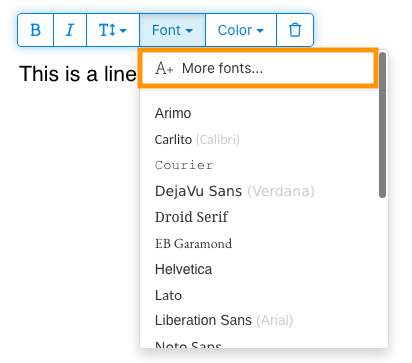
3) Type text on the page. From the context menu select "Fonts > More fonts".
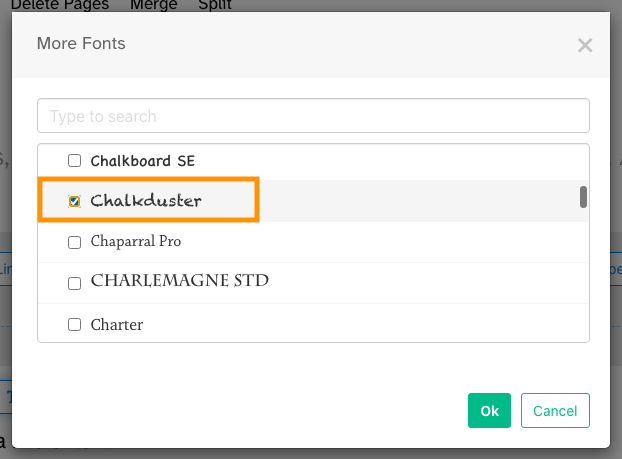
4) Select the font you would like to use and click "OK".
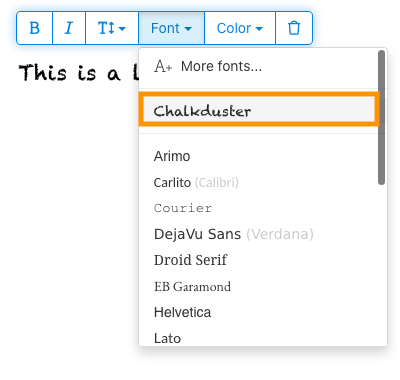
5) Click on the newly added font to use it for your text.
How long does it take for a refund to be processed?
It can take anywhere from 5-10 business days for a refund to show up on your bank account.
In some cases, the refund might be processed as a reversal, meaning the original payment will disappear from the account statement entirely and the balance will reflect as though the charge never occurred.
If you do not see the refund after 10 business days and you are still seeing the original charge on your bank statement, please reach out to support for more information.
How can you delete your FastSpring data?
If you've placed an order through FastSpring, our online authorized reseller & merchant of record, you can send your data erasure request to privacy@fastspring.com.
Malwarebytes interfering with Sejda Desktop?
Do you have Malwarebytes installed?
Please try temporarily turning Malwarebytes off and see if that solves the problem: Instructions here
You can report this problem with Malwarebytes: Report false positive
Could not convert: Page uses CAPTCHAs
The website you are trying to convert uses CAPTCHAs to block automated robots (such as our converter) from visiting their website.
There is no work around this.
See if the browser extension helps with your use-case:
HTML to PDF browser-extension
Install Linux OCR engine
Sejda Desktop does not ship with an embedded OCR engine on Linux, it uses the one available on the system.
To install an OCR engine, please run the following command:
sudo apt-get install -y tesseract-ocr tesseract-ocr-all
Once the command completes, return to Sejda Desktop and run your OCR task again.
Install Linux OCR language data
The OCR engine is installed successfully, but it is missing language data.
To install language data, please run the following command:
sudo apt-get install -y tesseract-ocr-all
About 667M of data will be downloaded and installed.
Once the command completes, return to Sejda Desktop and run your OCR task again.
オーナーパスワードの入力を求められています
なぜパスワードを求められるのですか?
一部の PDF ドキュメントには、印刷、テキストのコピー、編集、注釈の追加などの特定のアクションを制限するセキュリティ設定がついています. これらの制限は、コンテンツの使用方法や共有方法を制御するために、ドキュメントの作成者によって設定されています.
PDF にこれらの制限があることを検出した場合、オーナーパスワードの入力を求めます. このパスワードを入力すると、ドキュメントのロックが解除され、すべての機能と権限にフルアクセスできるようになります. この手順により、元の作成者が設定した制限を変更または削除できるのが、許可された人のみに限定されます.
オーナーパスワードとは何ですか?
オーナーパスワードは、ドキュメントへの不正な変更を防ぐために PDF の作成者によって設定されるものです. これは、ドキュメントを開くこと自体を制限するユーザーパスワードとは異なります. オーナーパスワードを持っている場合は、ドキュメントに対するすべての権限があることを意味します.
オーナーパスワードを持っていない場合はどうなりますか?
オーナーパスワードを持っていない場合は、PDF に設定された制限に基づいて、引き続き制限付きのアクセスとなります.
フルアクセスを可能にするには、ロックが解除されたバージョンのドキュメントを入手してください.
毎回オーナーパスワードを繰り返し入力しなくて済む方法はありますか?
PDF Unlocker ツールを使用して、ドキュメントから権限の制限を削除できます. この作業は一度だけで済みます. そうすれば、今後そのドキュメントでオーナーパスワードを求められることはありません.
Google Chrome で PDF を開き、Ctrl+P を押して印刷画面を出します。右上の [送信先] で [PDF として保存] を選択し、[保存] をクリックしてください.
有料プランを購入すれば解決しますか?
いいえ、有料プランをご利用でもオーナーパスワードは必要です.
オーナーパスワードを教えてもらえますか?
いいえ、ドキュメントのオーナーパスワードはこちらでは分かりません. オーナーパスワードは作成者が設定したもので、ログインパスワードとは異なります.
スキャンされたドキュメントの編集や変換ができません
なぜスキャンされたドキュメントは編集や変換ができないのですか?
紙の書類をスキャンしてPDFにする際、スキャナーは各ページを画像として取り込みます. この工程で、テキストや図形、レイアウトがPDF内の1つの画像ファイルに変換されます. 通常のPDFとは違い、スキャンされたPDFは各ページを1枚の大きな写真として扱います.
スキャンされたPDFのテキストは画像の一部なので、PDFエディターで直接認識や修正はできません. ソフトウェアにはピクセルの集まりにしか見えず、文字や単語として区別できません. そのため、通常のテキストベースのPDFのように段落を編集したり変更を加えたりすることができません.
ドキュメントがスキャンされたものか判断する方法は?
判断する方法の1つは、PDFビューアで開き、マウスでテキストを選択してみることです. 編集可能なPDFなら、カーソルをドラッグしてテキストをハイライトできます. テキストが選択できずページ全体が1枚の画像のようであれば、それはスキャンされたドキュメントです.
注意:一部のスキャン文書はOCR処理で「検索可能」になり、テキストの選択や検索ができる場合もあります. ですが、これらも依然としてスキャン画像であり、通常のPDFのように編集や変換はできません.
ドキュメントはスキャンされたものではないはずです
コンテンツが各ページに画像として埋め込まれているため、スキャンのように見えるドキュメントもあります. スクリーンショットから作成されたり、テキストがアウトライン化されていたりする場合に起こります.
技術的にはスキャンではありませんが、動作はスキャンと同じです. 残念ながら、これらのタイプのドキュメントの編集や変換もサポートしていません.
有料プランを購入すれば解決しますか?
いいえ、有料プランにアップグレードしても、スキャンされたドキュメントの編集や変換はできません. サブスクリプションの種類に関わらず、スキャンデータの編集や変換はサポート外です.
以前はこのドキュメントを編集できたはずです
スキャンされたドキュメントの編集や変換をサポートしたことは一度もありません. 以前編集できたのであれば、今のファイルとは別の方法でPDF書き出しをしていた可能性があります.
権限の問題で Sejda Desktop が失敗します
このエラーの主な原因は2つあります:権限不足、またはアンチウイルスソフトの干渉です.
権限不足: Sejda Desktop を管理者権限で実行する必要があるかもしれません. アプリを右クリックし、「詳細」>「管理者として実行」を選択してください.
アンチウイルスまたはセキュリティソフトウェア: 解決するか確認するため、一時的にアンチウイルスソフトを無効にしてみてください.
ChromebookにSejda Desktopをインストールする
Sejda Desktopは、Linux開発環境(Crostiniとも呼ばれます)を使用してChromebookにインストールできます.
要件
ChromebookでLinux開発環境が有効になっている必要があります. 有効にするには、設定 → 詳細 → デベロッパー → Linux開発環境に移動し、セットアップ手順に従ってください.
すべてのChromebookがLinuxをサポートしているわけではありません. 古いモデルやローエンドモデルでは、このオプションが利用できない場合があります.
1. Linux(.deb)版をダウンロードする
2. Terminalでインストールする
LinuxのTerminalアプリを開き、以下を実行してください:
cd ~/Downloads
sudo dpkg -i sejda-desktop_*.deb
sudo apt -f install
3. 実行する
sejda-desktop
または、ChromeOSランチャーのLinuxアプリフォルダーから起動してください.
トラブルシューティング:アプリが開かない
Sejda Desktopが表示されない、またはウィンドウが開かない場合は、不足しているGUIライブラリをインストールしてください:
sudo apt install -y libgconf-2-4 libatk1.0-0 libatk-bridge2.0-0
OCR機能
Linux版Sejda DesktopはシステムのOCRエンジンを使用します.
手順については「Install Linux OCR engine」を参照してください