 Google Drive
 OneDrive
Below we show how to combine an even pages file and an odd pages file into one PDF, achieving proper order.
ファイルをUpload
ファイルは暗号化接続で安全にUploadされます. ファイルは安全に保護されます. 処理後、ファイルは完全に削除されます.
ファイルをUploadせず、オフラインで作業したいですか?
Try Sejda Desktop. オンライン版と同じ機能で、ファイルがPCから出ることはありません.
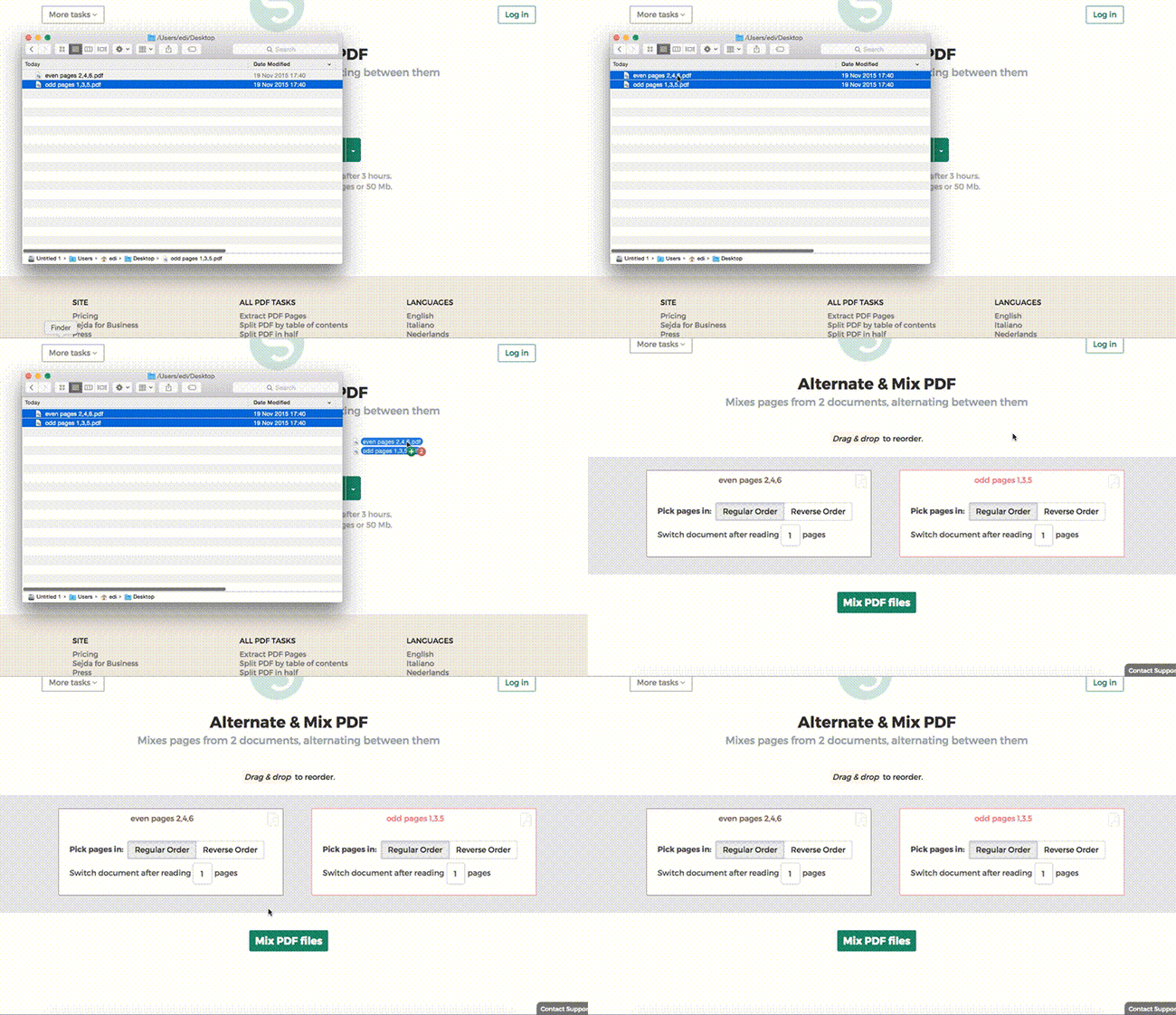
'Upload'をクリックしてPCからファイルを選択.
ファイルをページにドラッグ&ドロップしてもOKです.
Dropbox または Google Drive のファイル
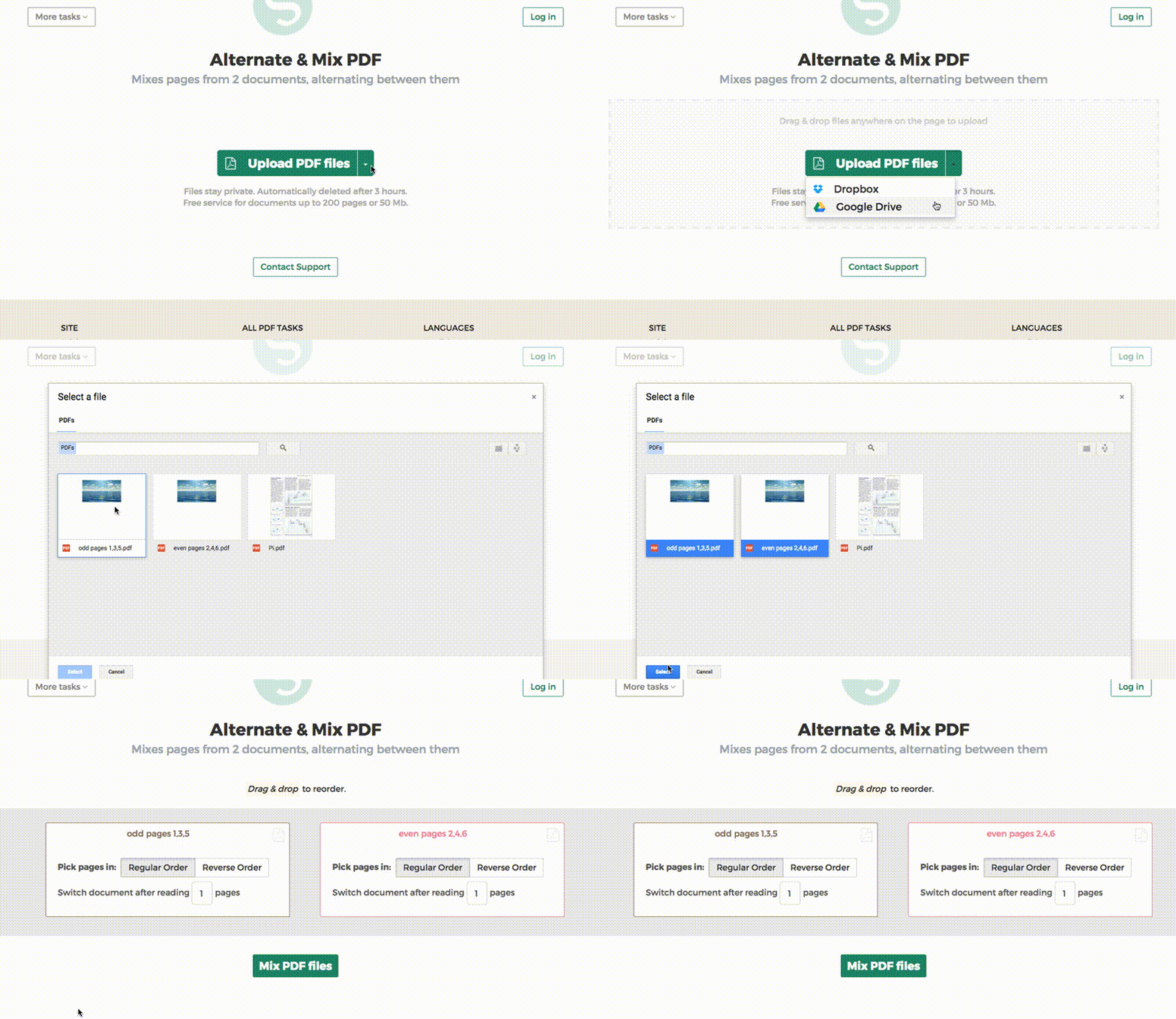
Dropbox や Google Drive からも PDF を選択できます.
'Upload'のドロップダウンを開いてファイルを選択してください.
ステップ 2: ページの並び替え
よくあるケースは、オートフィードスキャナーから取得した偶数ページのPDFと奇数ページのPDFという2つのファイルセットがある場合です. これらを結合するには、Alternate & Mixボタンをクリックするだけです.
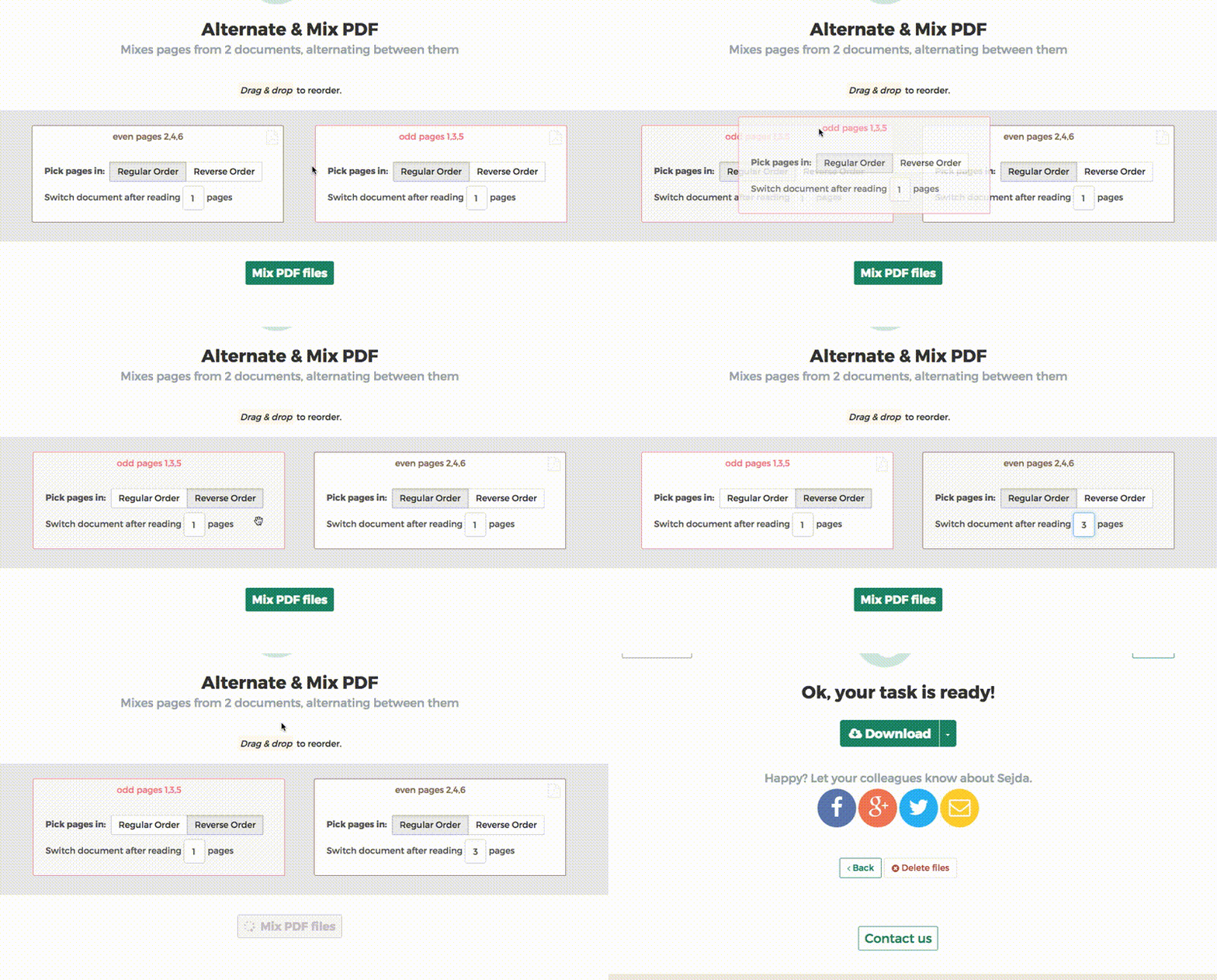
ファイルが正しい順序でアップロードされなかった場合は、ドラッグ&ドロップで入れ替えてください. 奇数ページのPDFファイルを左側に、偶数ページのPDFファイルを右側に配置してください.
Tip: 逆順の偶数ページを照合する
偶数ページが逆順(10、8、6、4、2など)でスキャンされた場合は、「Pick pages in: Reverse Order」オプションを選択してください. 結果は1、2、3、4のように正しい順序でページが並びます.
Tip: 異なるステップで交互に並べる
デフォルトでは、交互に並べる際に各ドキュメントから1ページずつ取得されます. 異なるステップで交互に並べる必要がありますか?
例えば、right.pdfの3ページごとにleft.pdfのページを挿入したい場合などです. この場合、右側のファイルの「Switch document after reading」の値を3に変更してください.