
Help & Knowledge Base
Customizing Result File Names
Special keywords can be used as placeholders in the output file names, to be replaced with dynamic values during the execution.
A trivial example is prefixing each document with the page number, when splitting.
[CURRENTPAGE]
A reference to the current page number in the input document.
Example: [CURRENTPAGE###] will generate filesnames like 001.pdf, 002.pdf.
Example: [CURRENTPAGE##] generates 01.pdf, 02.pdf, etc.
[TIMESTAMP]
Ensures unique output filenames, being replaced with current date & time.
[FILENUMBER]
Ensures unique output filenames, replaced with a file number according to the output order.
Example: [FILENUMBER###] generates 001, 002
Example: [FILENUMBER13] starts with the counter at 13, generating 13, 14,
etc.
[BASENAME]
Does not ensure unique output filenames, and it must be used together with other placeholders ensuring unique names. It is replaced with original name of the input document, without the extension.
Example: [CURRENTPAGE]_[BASENAME] would generate 1_input-file.pdf, 3_input-file.pdf,
etc.
[BOOKMARK_NAME]
This pattern is replaced by current bookmark's name. Only applicable in the "Split by bookmarks" tool.
[BOOKMARK_NAME_STRICT]
Same behavior as [BOOKMARK_NAME] with the difference that non-alphanumberic characters are
removed.
Example: [CURRENTPAGE]-[BOOKMARK_NAME] would generate 1-Introduction.pdf, 4-Chapter
1.pdf, etc.
[TEXT]
This pattern is applicable only in the "Split by text" tool. It is replaced with the text found in the page area selected.
Example: [CURRENTPAGE]-[TEXT] would generate 1-Invoice 3456789.pdf, 4-Invoice
234567.pdf, etc.
[TEXT1], [TEXT2], etc.
This pattern is applicable only in the "Rename" tool. It is replaced with the text found in the selected area.
Example: [TEXT2]-[TEXT1] would generate John Doe-Invoice 3456789.pdf, Jane Doe-Invoice
234567.pdf, etc.
Sejda Desktop Enterprise Install
To deploy Sejda Desktop in an enterprise environment using a pre-configured volume license key use this command:
msiexec /i sejda-desktop_x.y.z_x64.msi LICENSE_KEY="1234-ABCD-1234-ABCD"
Any options provided will be configured machine-wide and will apply for all users on the system.
| LICENSE_KEY | License key | LICENSE_KEY="1234-ABCD-1234-ABCD" |
| LOCALE | UI language | en, es, de, fr,it or pt |
| UPDATE_CHECK | Disables checking for new versions | UPDATE_CHECK="false" |
| DISABLED_FEATURES | List of features to be disabled | DISABLED_FEATURES="edit.whiteout" |
| EULA_ACCEPTED | Accept EULA and no longer prompt on first use | EULA_ACCEPTED="true" |
| AUTO_REPORT_ERRORS | Configure automated error reporting and no longer prompt on first use | AUTO_REPORT_ERRORS="false" |
Resetting Browser Zoom
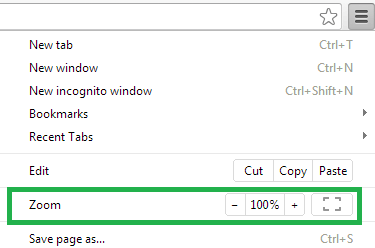
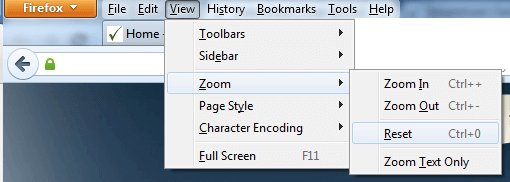
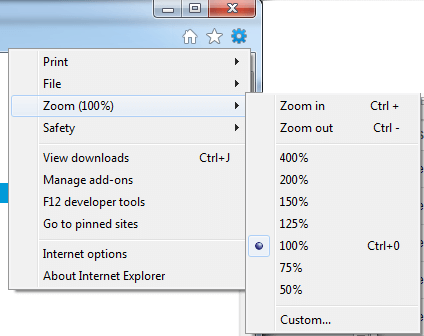
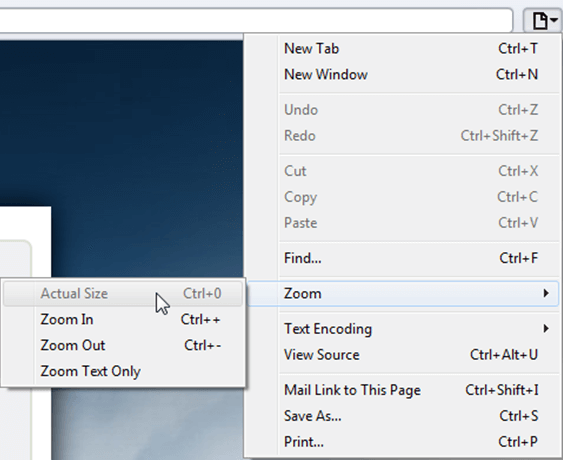
Choosing a zoom level of anything other than 100% (the default) can cause problems in pages where we render PDF pages.
If you are warned about it, reset the browser zoom to 100%.
The quickest way to return your browser to this zoom setting is to use the keyboard shortcut Ctrl + 0 on Windows or Cmd + 0 on Mac.
Additional browser-specific instructions for changing the zoom level are detailed below.
Chrome
Firefox
Internet Explorer
Safari
Sejda Desktop - Loading local fonts failed
Sejda Desktop fails to load the fonts installed on your system?
Windows 7: Please install "Platform update for Windows 7 SP1": https://support.microsoft.com/en-us/kb/2670838.
Linux: Please install libfontconfig-dev: sudo apt-get install libfontconfig-dev
Sejda Desktop - Add your fonts
Sejda Desktop can use your custom fonts when editing PDF documents.
1) Install the font on your system. See help for Windows or Mac.
2) Open Sejda Desktop, then open a PDF document with the Editor.
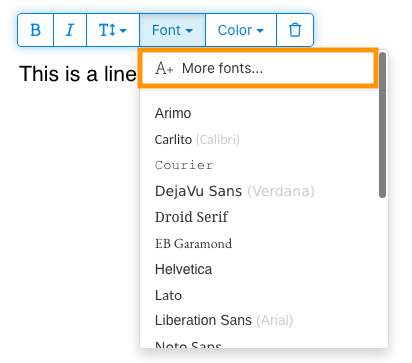
3) Type text on the page. From the context menu select "Fonts > More fonts".
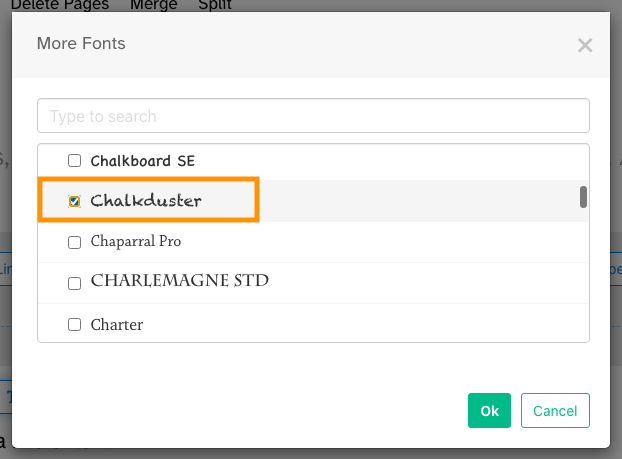
4) Select the font you would like to use and click "OK".
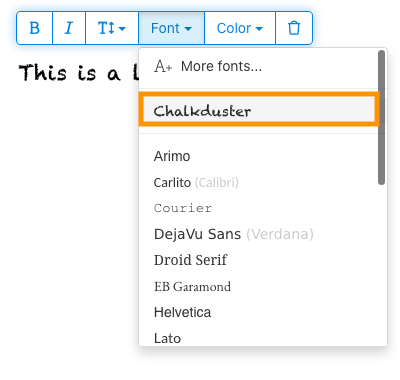
5) Click on the newly added font to use it for your text.
How long does it take for a refund to be processed?
It can take anywhere from 5-10 business days for a refund to show up on your bank account.
In some cases, the refund might be processed as a reversal, meaning the original payment will disappear from the account statement entirely and the balance will reflect as though the charge never occurred.
If you do not see the refund after 10 business days and you are still seeing the original charge on your bank statement, please reach out to support for more information.
How can you delete your FastSpring data?
If you've placed an order through FastSpring, our online authorized reseller & merchant of record, you can send your data erasure request to privacy@fastspring.com.
Malwarebytes interfering with Sejda Desktop?
Do you have Malwarebytes installed?
Please try temporarily turning Malwarebytes off and see if that solves the problem: Instructions here
You can report this problem with Malwarebytes: Report false positive
Could not convert: Page uses CAPTCHAs
The website you are trying to convert uses CAPTCHAs to block automated robots (such as our converter) from visiting their website.
There is no work around this.
See if the browser extension helps with your use-case:
HTML to PDF browser-extension
Install Linux OCR engine
Sejda Desktop does not ship with an embedded OCR engine on Linux, it uses the one available on the system.
To install an OCR engine, please run the following command:
sudo apt-get install -y tesseract-ocr tesseract-ocr-all
Once the command completes, return to Sejda Desktop and run your OCR task again.
Install Linux OCR language data
The OCR engine is installed successfully, but it is missing language data.
To install language data, please run the following command:
sudo apt-get install -y tesseract-ocr-all
About 667M of data will be downloaded and installed.
Once the command completes, return to Sejda Desktop and run your OCR task again.
Minua pyydetään syöttämään owner-salasana
Miksi minulta kysytään salasanaa?
Joissakin PDF-dokumenteissa on suojausasetuksia, jotka rajoittavat toimintoja, kuten tulostamista, tekstin kopiointia, muokkaamista tai merkintöjen lisäämistä. Dokumentin luoja on asettanut nämä rajoitukset hallitakseen sisällön käyttöä ja jakamista.
Kun huomaamme PDF:ssä tällaisia rajoituksia, pyydämme sinulta owner-salasanaa. Salasanan syöttäminen avaa dokumentin lukituksen ja antaa täydet oikeudet kaikkiin toimintoihin. Tämä vaihe varmistaa, että vain valtuutetut henkilöt voivat muuttaa tai poistaa alkuperäisen tekijän asettamia rajoituksia.
Mikä on owner-salasana?
PDF:n luoja asettaa owner-salasanan estääkseen luvattomat muutokset dokumenttiin. Se eroaa user-salasanasta, joka estää koko dokumentin avaamisen. Jos sinulla on owner-salasana, sinulla on täydet oikeudet dokumenttiin.
Mitä jos minulla ei ole owner-salasanaa?
Jos sinulla ei ole owner-salasanaa, käyttöoikeutesi säilyvät rajoitettuina PDF-asetusten mukaisesti.
Saadaksesi täydet oikeudet, hanki dokumentista lukitsematon versio.
Miten vältän owner-salasanan syöttämisen joka kerta uudelleen?
Voit käyttää PDF-lukituksen poistotyökalua poistaaksesi rajoitukset dokumentistasi. Teet tämän vain kerran. Sen jälkeen sinulta ei enää kysytä dokumentin owner-salasanaa.
Avaa PDF Google Chromessa, paina Ctrl+P, valitse oikealta ylhäältä "Kohde"-kohdaksi "Tallenna PDF-muodossa" ja klikkaa "Tallenna".
Auttaako maksullisen tilauksen ostaminen?
Ei, sinulta kysytään yhä owner-salasanaa, vaikka sinulla olisi maksullinen tilaus.
Voitteko kertoa minulle owner-salasanan?
Emme, emme tiedä dokumenttiesi owner-salasanaa. Dokumentin luoja on valinnut owner-salasanan, ja se on eri kuin kirjautumissalasanasi.
En voi muokata tai muuntaa skannattua dokumenttia
Miksi skannattuja dokumentteja ei voi muokata tai muuntaa?
Kun skannaat fyysisen dokumentin PDF-muotoon, skanneri ottaa kuvan jokaisesta sivusta. Tämä muuntaa tekstin, grafiikan ja asettelun yhdeksi PDF-tiedostoon upotetuksi kuvaksi. Toisin kuin tavallisissa PDF-tiedostoissa, joissa teksti on merkkejä ja rivejä, skannatut PDF:t käsittelevät sivuja yhtenä isona kuvana.
Koska skannatun PDF:n teksti on osa kuvaa, PDF-editorit eivät tunnista tai muokkaa sitä suoraan. Ohjelmisto näkee vain pikseleitä, ei erotettavia kirjaimia tai sanoja. Tämän vuoksi tekstin muokkaaminen on mahdotonta toisin kuin tavallisessa tekstipohjaisessa PDF-tiedostossa.
Mistä tietää, onko dokumentti skannattu?
Yksi tapa selvittää tämä on avata PDF ja yrittää valita tekstiä hiirellä. Muokattavassa PDF-tiedostossa voit korostaa tekstiä vetämällä kursoria sen yli. Jos et voi valita tekstiä ja koko sivu toimii kuin yksi kuva, kyseessä on todennäköisesti skannattu dokumentti.
Huomaa: Jotkut skannatut dokumentit on käsitelty tekstintunnistuksella (OCR), jotta niistä tulisi haettavia skannauksia, joissa tekstiä voi valita ja hakea. Nämä dokumentit ovat silti skannauksia, eikä niitä voi muokata tai muuntaa kuten tavallisia PDF-tiedostoja.
Olen varma, ettei dokumenttini ole skannaus
Jotkut dokumentit muistuttavat skannauksia, koska niiden sisältö on upotettu kuvina jokaiselle sivulle. Näin voi käydä kuvakaappauksista luoduille dokumenteille tai kun teksti on muutettu poluiksi muokattavan tekstin sijaan.
Vaikka nämä eivät teknisesti ole skannauksia, ne toimivat samalla tavalla. Valitettavasti emme tue myöskään tällaisten dokumenttien muokkaamista tai muuntamista.
Auttaako maksullisen tilauksen ostaminen?
Ei, maksulliseen tiliin päivittäminen ei mahdollista skannattujen dokumenttien muokkaamista tai muuntamista. Skannausten muokkaamista tai muuntamista ei tueta tilaustasostasi riippumatta.
Olen varma, että pystyin muokkaamaan tätä dokumenttia aiemmin
Emme ole koskaan tukeneet skannattujen dokumenttien muokkaamista tai muuntamista. Jos pystyit muokkaamaan dokumenttia aiemmin, se on todennäköisesti viety PDF-muotoon eri tavalla kuin nykyinen dokumentti.
Sejda Desktop epäonnistuu käyttöoikeuksien vuoksi
Tähän virheeseen on kaksi yleistä syytä: puutteelliset oikeudet tai virustorjuntaohjelman häiriö.
Puutteelliset oikeudet: Sinun on ehkä suoritettava Sejda Desktop järjestelmänvalvojan oikeuksilla. Klikkaa sovellusta hiiren kakkospainikkeella ja valitse "Lisää" > "Suorita järjestelmänvalvojana".
Virustorjunta- tai tietoturvaohjelmisto: Kokeile poistaa virustorjunta tilapäisesti käytöstä nähdäksesi, auttaako se ongelmaan.
Asenna Sejda Desktop Chromebookille
Sejda Desktop voidaan asentaa Chromebookille käyttämällä Linux-kehitysympäristöä (tunnetaan myös nimellä Crostini).
Vaatimukset
Chromebookissasi täytyy olla Linux-kehitysympäristö käytössä. Ota se käyttöön menemällä Asetukset → Lisäasetukset → Kehittäjät → Linux-kehitysympäristö ja seuraa asennusvaiheita.
Kaikki Chromebookit eivät tue Linuxia. Vanhemmissa tai edullisemmissa malleissa tätä vaihtoehtoa ei ehkä ole.
1. Lataa Linux-versio (.deb)
2. Asenna se Terminal-sovelluksessa
Avaa Linux Terminal -sovellus ja aja:
cd ~/Downloads
sudo dpkg -i sejda-desktop_*.deb
sudo apt -f install
3. Käynnistä se
sejda-desktop
Tai käynnistä se Linux-sovelluskansiosta ChromeOS-käynnistimestä.
Vianetsintä: sovellus ei aukea
Jos Sejda Desktop ei tule näkyviin tai ikkuna ei aukea, asenna puuttuvat GUI-kirjastot:
sudo apt install -y libgconf-2-4 libatk1.0-0 libatk-bridge2.0-0
OCR-ominaisuudet
Sejda Desktop Linuxilla käyttää järjestelmän OCR-moottoria.
Katso ohjeet kohdasta Install Linux OCR engine