 Google Drive
 OneDrive
Hieronder laten we zien hoe je één of meerdere PDF-bestanden verkleint.
-
Upload je bestanden
Bestanden worden veilig geüpload via een versleutelde verbinding. Bestanden blijven veilig. Na verwerking worden ze definitief verwijderd.
Liever niet je bestanden Uploaden en offline werken?
Try Sejda Desktop. Dezelfde functies als de online service, en de bestanden verlaten nooit je computer.Klik op 'Upload' en selecteer bestanden van je lokale computer.
Bestanden naar de pagina slepen werkt ook.
Dropbox- of Google Drive-bestanden
Je kunt ook PDF-bestanden uit Dropbox of Google Drive kiezen.
Vouw het 'Upload' menu uit en selecteer je bestanden.
-
Comprimeren PDF
Klik op de 'Compress'-knop en 'Download' daarna je gecomprimeerde PDF. Of klik op de 'More options'-knop voor geavanceerde instellingen.
Het compressie-algoritme doet het volgende:
- Optimaliseert afbeeldingen
- Verwijdert ongebruikte lettertypen en afbeeldingen
-
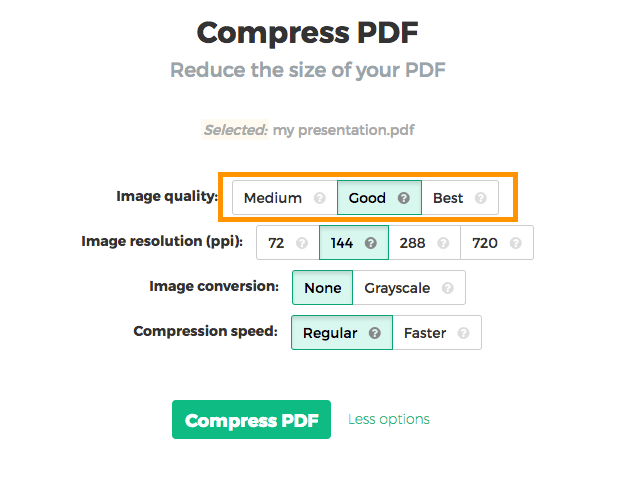
Beeldkwaliteit configureren
Afbeeldingen worden geoptimaliseerd en opgeslagen met een JPEG-kwaliteit van 65%.
Dat is perfect voor de meeste scenario's. Maar als het nodig is, kun je een betere kwaliteit instellen voor de afbeeldingen (ook al wordt de PDF dan groter).
Selecteer onder 'image quality' 'Good' of 'Best'.
![]()
-
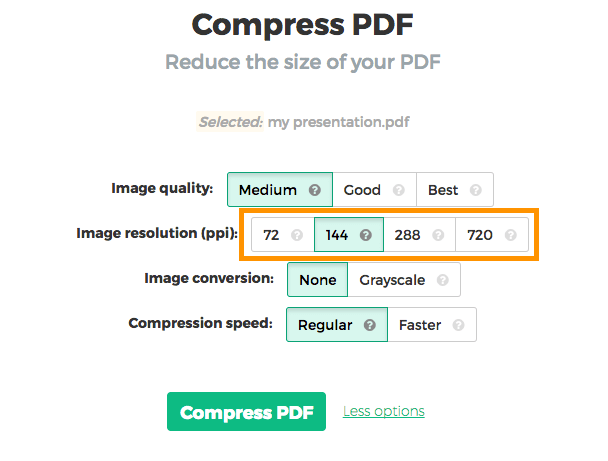
Beeldresolutie (PPI)
Met de standaardinstellingen worden afbeeldingen naar '72 PPI' geoptimaliseerd.
Werk je in een situatie waarin een hogere beeldresolutie nodig is? Klik op 'More options' en selecteer '144 ppi', '288 ppi' of '720 ppi' als maximale PPI-resolutie.
![]()
-
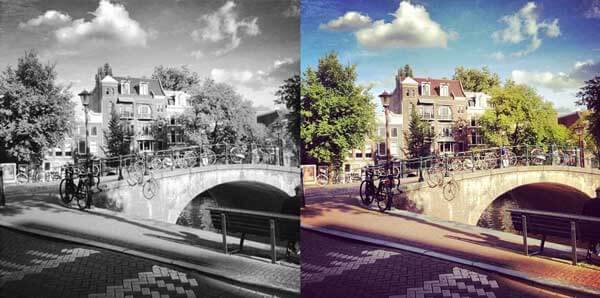
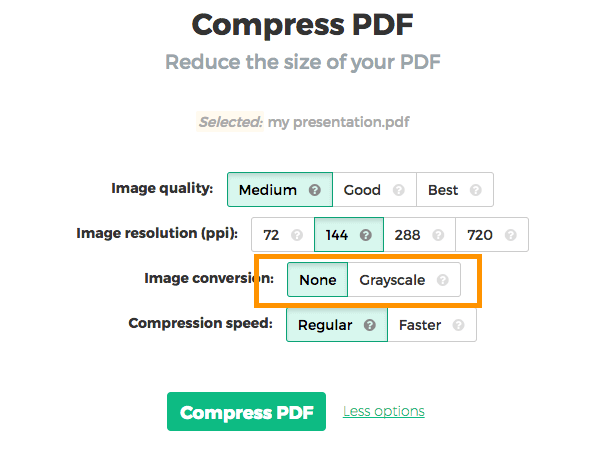
Afbeeldingen in grijswaarden
Voor kleinere PDF's met veel afbeeldingen kun je deze omzetten naar grijswaarden.
Hier is een voorbeeld van een afbeelding in grijswaarden:
![]()
Selecteer 'grayscale' bij 'image conversion' om deze optie te gebruiken.
![]()
-
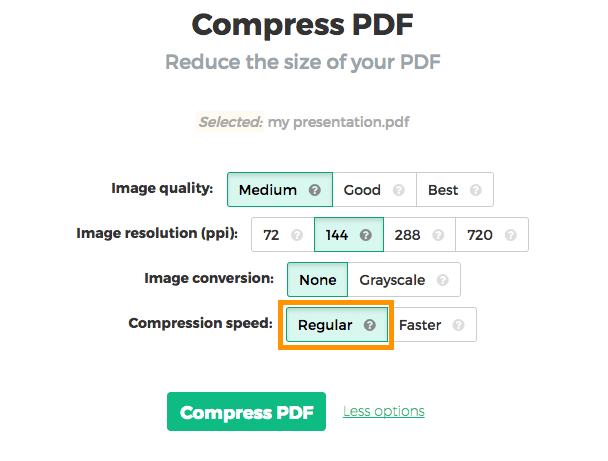
Snellere PDF-compressie
Het verwerken van elke afbeelding kost tijd. Een document met veel afbeeldingen duurt langer om te comprimeren.
Het comprimeren van kleine afbeeldingen heeft weinig invloed op de totale grootte. We willen vooral de grotere afbeeldingen optimaliseren. Kies 'Faster' om kleine afbeeldingen over te slaan en alleen grote te verwerken.
![]()